Annotation 101: How to Mark Up Documents, Screenshots, and Web Pages in OmniCanvas
Free spatial notes
Put this workflow on an infinite canvas instead of another linear doc.
Start in the browser with no account. Create an account only when you want to sync what you made.
Annotation 101: How to Mark Up Documents, Screenshots, and Web Pages in OmniCanvas
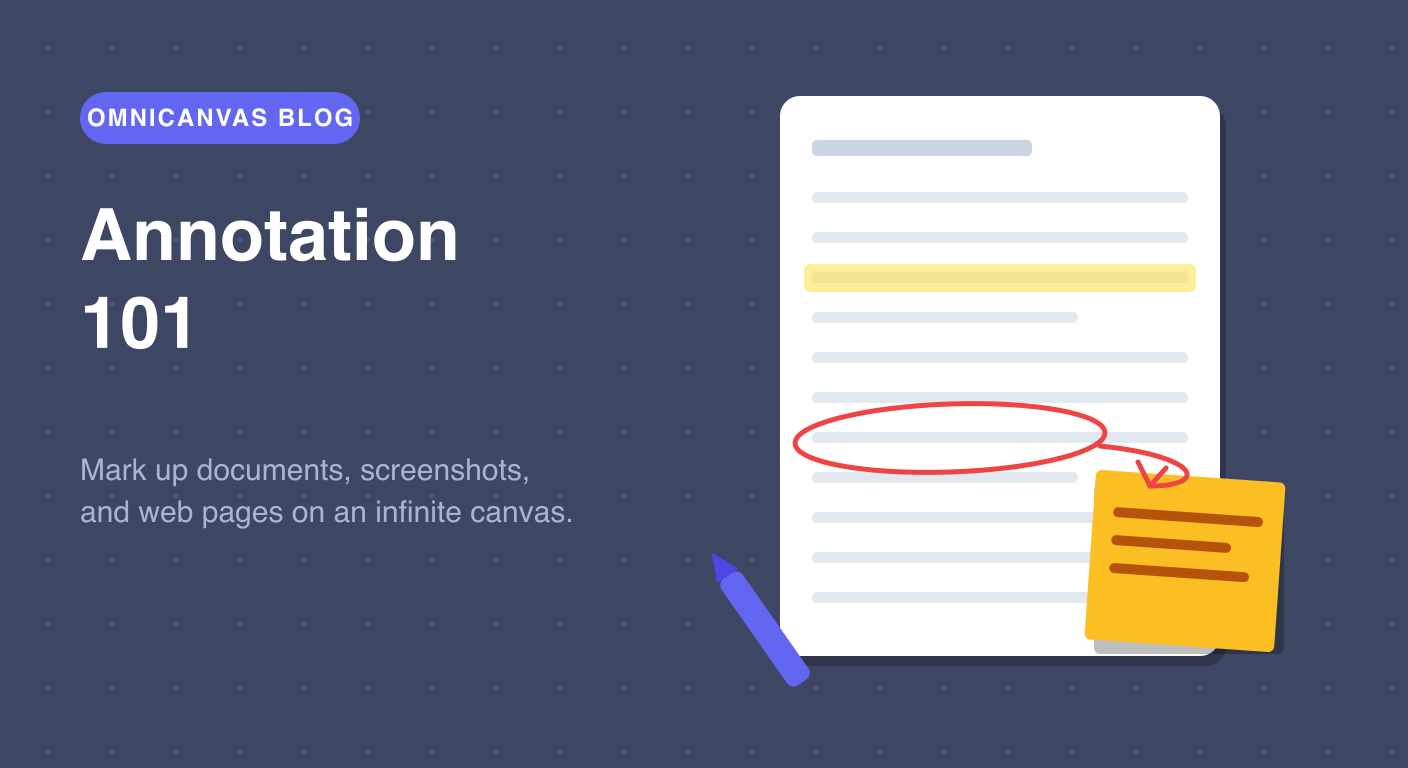
Reading something and understanding it are not the same thing. Annotation — marking up a document with your own thoughts, questions, and connections — is what turns one into the other. It is also one of the things an infinite canvas does dramatically better than paper, PDFs, or any linear notes app.
What Annotation Actually Is
Annotation is a conversation with the material. Instead of passively consuming a document, you respond to it:
- Highlight or circle what matters.
- Question what is unclear or unconvincing.
- Connect it to things you already know.
- Summarize sections in your own words.
- Extract the parts worth keeping.
Research on active reading consistently shows that readers who annotate retain more and understand the structure of arguments better than readers who just highlight — and far better than readers who do nothing. The act of writing a response forces the processing that creates memory.
Why a Canvas Beats Margins
Traditional annotation is cramped into whatever space the document leaves you: thin margins, sticky notes, PDF comment bubbles that collapse into icons. The document is the territory and your thinking has to squeeze in around it.
On an infinite canvas, that inverts. The document becomes one object on your workspace, and your thinking gets unlimited room around it. You can put a full paragraph of your own analysis next to the paragraph that prompted it, draw arrows between page 3 and page 11, and lay two documents side by side to annotate the disagreement between them.
Free spatial notes
Open a canvas in the browser — no account needed.
How to Annotate in OmniCanvas
1. Get the material onto your canvas.
- Screenshots and images: paste them directly (Cmd+V) or drag image files onto the canvas.
- Web pages and articles: use Clip URL to pull a page into your note.
- Slides: screenshot the slides you care about and paste them in a row.
- Paper documents, whiteboards, and book pages: snap a photo with the camera capture tool. OmniCanvas can also run OCR on photos of handwriting and documents, so the text inside your images becomes searchable.
2. Mark up what matters.
- Use the pen tool to circle, underline, and bracket key passages — exactly like you would on paper.
- Drop a semi-transparent rectangle over a passage to highlight it.
- Use arrows to connect a claim on one page to evidence (or a contradiction) on another.
3. Add your thinking around it.
- Put text blocks next to the document for your responses: objections, questions, "this connects to X."
- Use sticky notes for action items and follow-ups so they stand out from analysis.
- Color-code your annotations: one color for questions, one for disagreements, one for key takeaways. At review time the colors let you scan for exactly the type of note you need.
4. Extract and synthesize.
This is the step margins never had room for. After annotating, pull the key points out beside the document — as a mind map of the argument, a box-method summary of the sections, or a simple list of claims you want to keep. The source document stays on the same canvas, one zoom-out away, so every extracted point remains connected to its origin. For a blank surface to spread documents and annotations across, open the free whiteboard, and for more ways to think on a canvas see our visual brainstorming techniques.
Three Annotation Workflows Worth Stealing
The research read. Clip the article onto your canvas. First pass: pen-circle anything that matters. Second pass: write a text block response next to every circle. Third pass: build a mini mind map of the argument next to the article. You now understand the paper better than most people who cite it.
The design or document review. Paste screenshots of the design, contract, or draft. Annotate directly on top with arrows and text. Drop sticky notes for every change request. Share the canvas link — your collaborators see comments exactly where they apply, not in a detached email thread.
The meeting deck debrief. After a presentation, paste the key slides in a row. Under each slide, write what was actually decided and what was left open. Draw arrows between slides that contradict each other. This takes ten minutes and produces a record that is more honest than the official minutes.
Start Annotating
Open a local OmniCanvas canvas, paste in the last screenshot you took or clip the last article you read, and circle one thing. Write one objection next to it. That is annotation — and once your thinking has unlimited space to live next to the things you are thinking about, margins will never feel like enough again.
Ready to try spatial notetaking?
OmniCanvas is a free infinite canvas app for notes, sketches, and ideas. Start locally with no account.
Try OmniCanvas FreeSign up only when you want sync — or explore the interactive demo first.
Keep reading
Screenshot Any Web Page Into Your Notes — Before It Changes or Disappears
Web pages rot, mutate and vanish. OmniCanvas captures a full-page screenshot of any URL — plus its searchable text — onto your canvas in one click.
TechniquesSpace to Pan, Except When You Are Typing: Keyboard Focus on an Infinite Canvas
Pressing space should pan the canvas — unless there is a text cursor, when it should type a space. Harder than it looks, and everyone gets it wrong.
TechniquesHow to Create a Digital Vision Board on an Infinite Canvas
How to create a digital vision board combining images, text, goals and affirmations on a spatial canvas. More flexible than a physical board.