Concept Lines: See How the Ideas on Your Canvas Connect
Concept lines, on every plan
Write a few blocks, then click Concepts.
Open a canvas in the browser with no account. Concepts sits at the top right of the canvas on windows 1,024 pixels and wider; matching by meaning is an optional on-device download.
Free forever · 30 days of Pro when you sign up
A Canvas Shows Where You Put Things, Not What They Share
After a planning session or a week of meeting notes, one canvas can hold thirty text blocks and a dozen sticky notes. The layout tells you what you grouped together. It does not tell you that the pricing note in the top-left corner and the interview notes at the bottom are talking about the same thing.
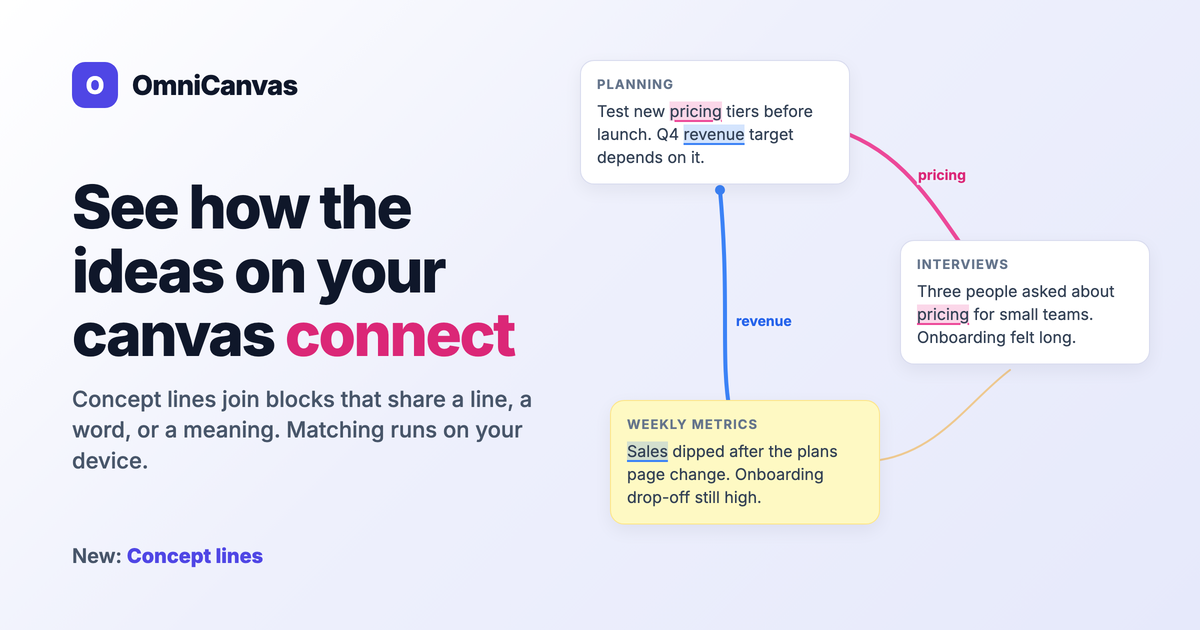
Concept lines do that first reading pass for you. They show which ideas run through more than one block on a canvas, highlight the shared words, and draw a curved line between the blocks, one color per concept.
Concept lines shipped on September 18, 2026, and they are available on every plan.
Turning Them On
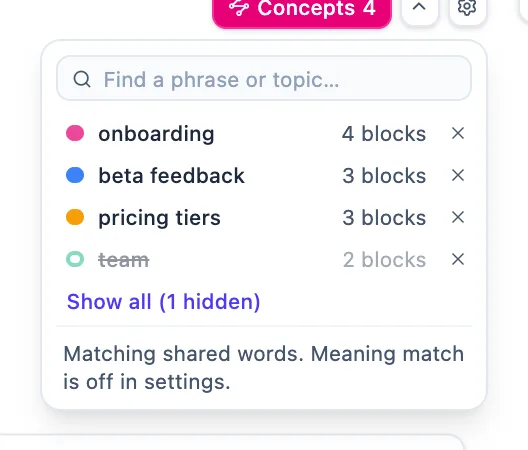
Click Concepts at the top right of the canvas. The button turns pink and a legend opens, listing each concept, its color, and how many blocks it links. The setting is remembered on this device, so the lines are there the next time you open a canvas.
Concept lines compare the rich text blocks and sticky notes on the canvas you have open, and update about a third of a second after you stop typing.
What Counts as a Connection
There are three kinds of match, strongest first.
- Repeated lines. A short line of 2 to 12 words, such as a list item or a heading, that appears word for word in another block. Each repeated line links to the exact line it repeats, even when its words are generic. If you copy "follow up with legal" from a meeting block into your to-do block, those two lines are joined.
- Shared words and phrases. The same word or two-word phrase in two blocks, ignoring case and plurals, so "customer" and "Customers" match. Filler words such as "the", "need" and "thing" never link, and neither do bare numbers.
- Related meanings (optional). With the on-device meaning model downloaded, different words with the same meaning link too: "revenue" and "sales", or "pooled storage" and "storage quota". Repeated lines never match by meaning; they have to be exact.
Reading the Lines Without the Clutter
The obvious way for this to fail is a canvas covered in colored spaghetti. So at rest, the lines are thin and faint and no words are highlighted.
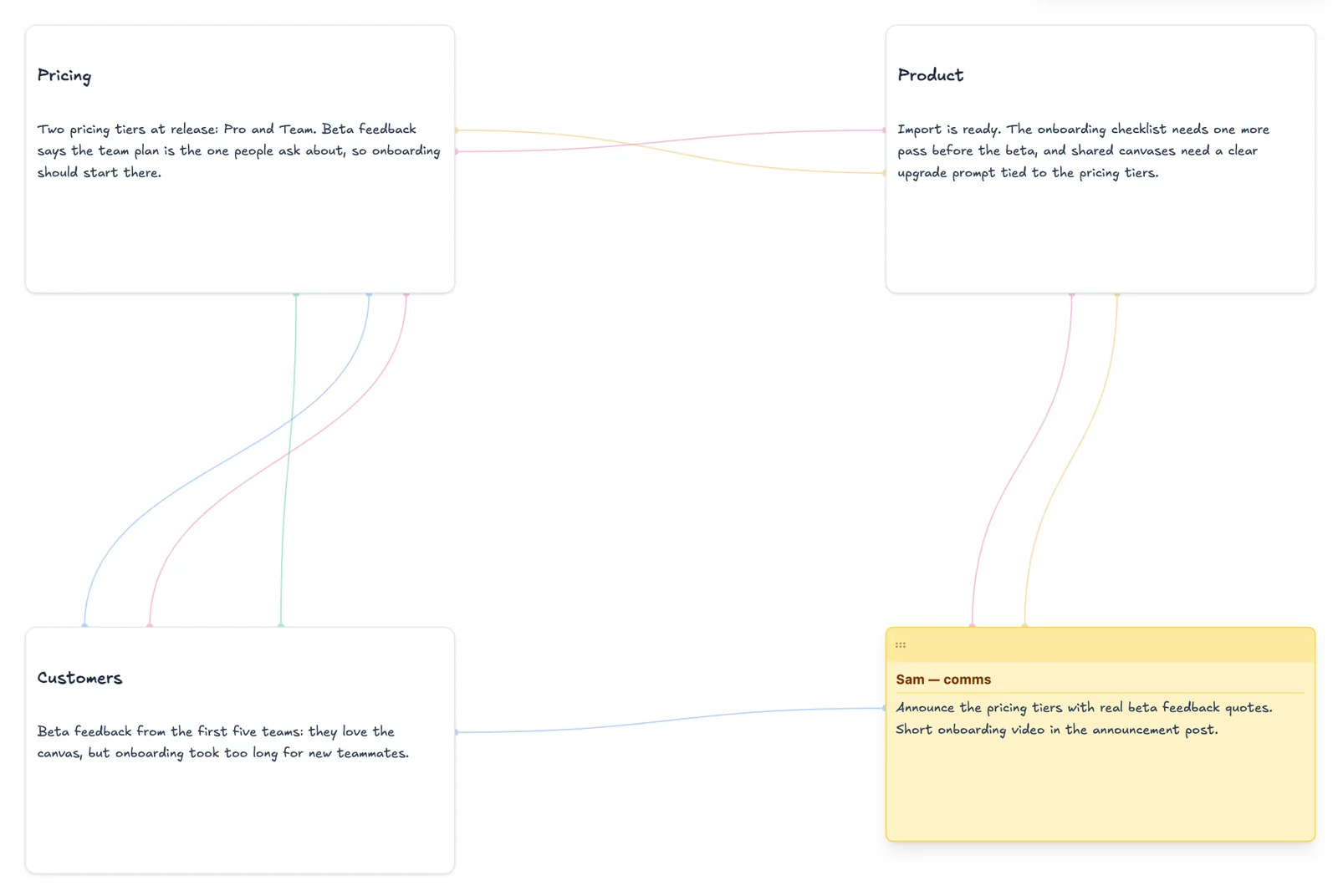
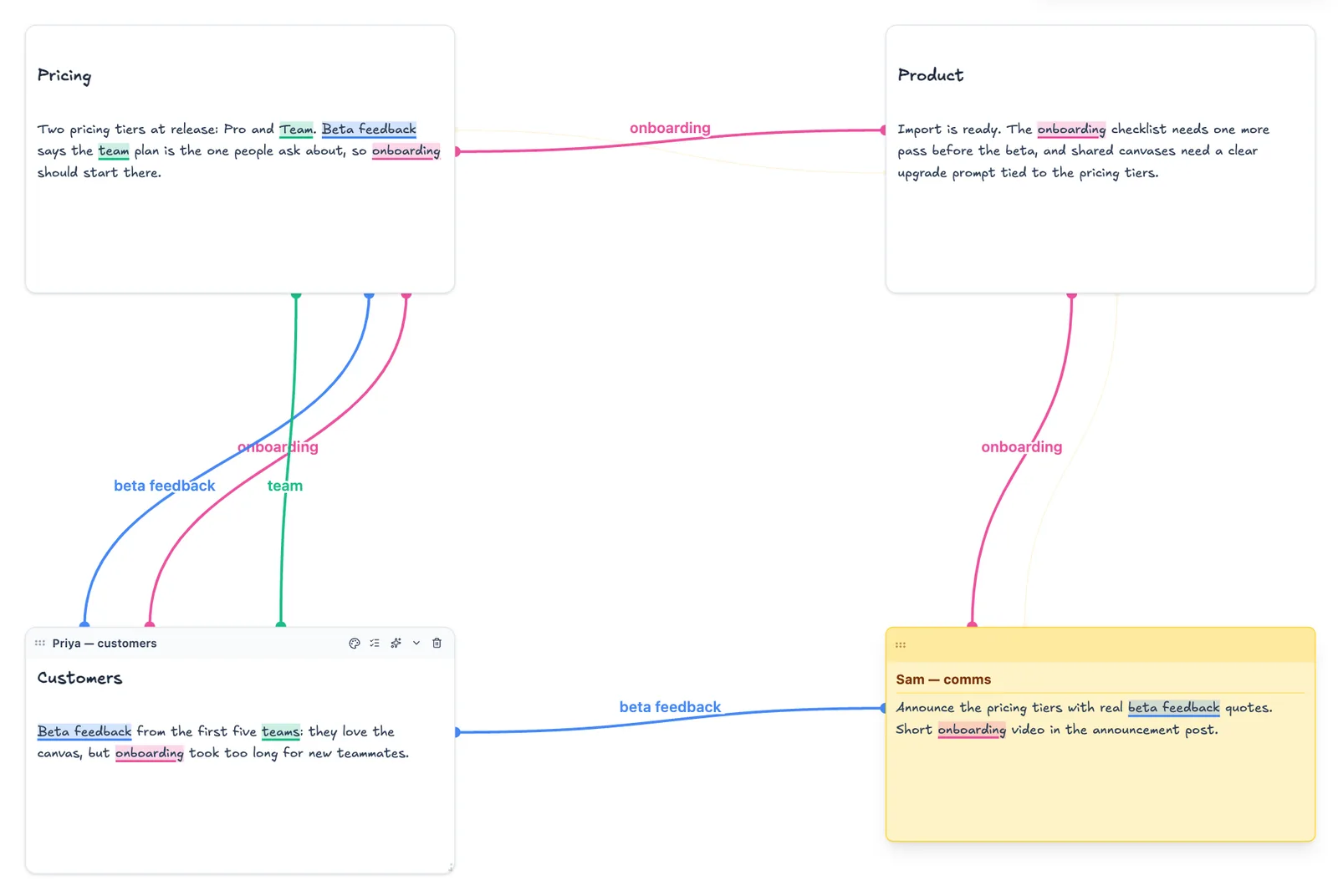
Hover over a block, or start editing one, and its concepts come forward: the lines turn bold, the shared words are highlighted in the concept's color, and each concept's name appears on its line. Where lines cross, the labels slide apart, and a label is left off if there is no room for it. Hover a concept in the legend to show only that concept.
Four Ways to Explore
Search for a phrase or topic
The legend has a search box. Type a phrase and every block that mentions it is highlighted in yellow and connected by a dark line. With the meaning model on, blocks that say it differently join in too, so a search for "revenue" can pull in a block that only says "sales". Press Esc or click × to clear it.
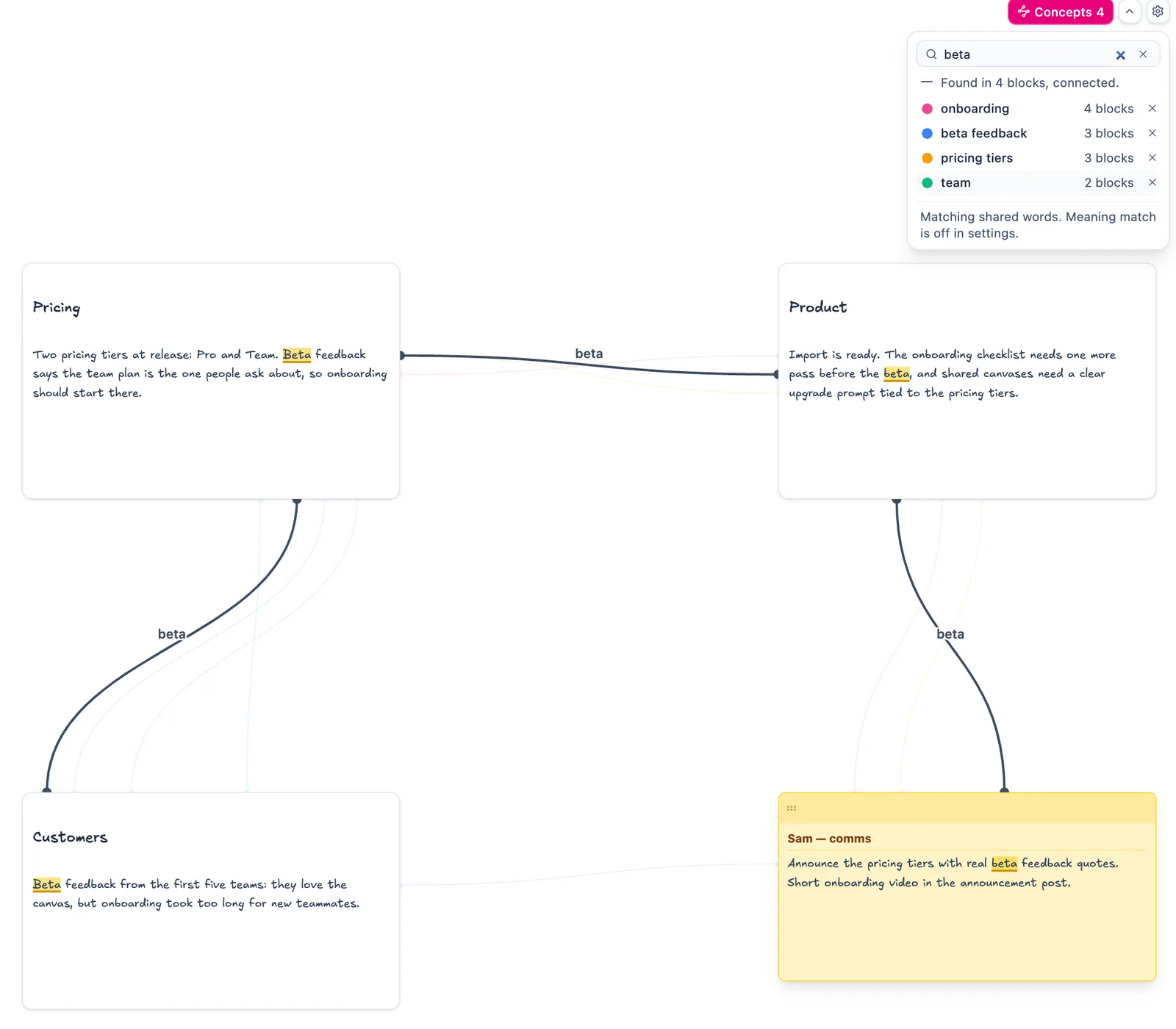
Where full-text search finds notes across your library, this answers a narrower question: where on this canvas did I write about it?
See where a word connects, then go there
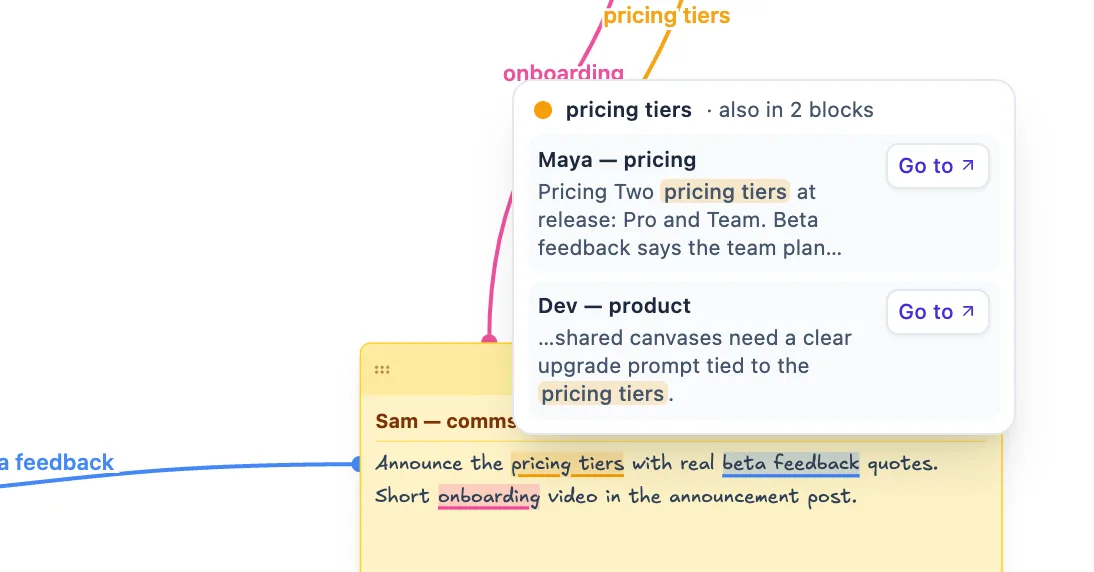
Hover a highlighted word and a small card lists the other blocks it links to, with the words around each match. Each entry has a Go to button that pans the canvas to that block. On a large canvas it saves zooming out and hunting.
Concept lines, on every plan
Open a canvas in the browser — no account needed.
Pin a concept
Click a highlighted word to keep its lines forward after your mouse moves on. Click the word again, click anywhere else, or press Esc to let go. Go to pins the concept as well, so the word is easy to spot where you land.
Hide what you don't need right now
Click a concept in the legend to switch its lines off for now; its row greys out. Click it again to bring it back, or click Show all. That is different from × next to a concept, which stops linking those words on every canvas. Words hidden with × come back with Show again in settings. If the legend itself is in the way, the chevron next to Concepts collapses the list while the lines stay on.
The Meaning Model, and What Stays on Your Device
Matching by meaning needs a language model, and the common way to do that is to send your text to a server. Concept lines do not.
The meaning model is all-MiniLM-L6-v2, a small sentence-embedding model. It is a one-time 23 MB download, and it is only downloaded when you click Download in the Concepts legend (or in Concepts settings). The files come from Hugging Face, pinned to one specific version so a change upstream can never trigger an unexpected download, and they are cached in your browser. From then on:
- Matching runs on your device, inside the browser. The text of your notes is not sent anywhere.
- It works offline.
- It works on encrypted notes. Matching happens on the device where your notes are already open, so client-side encryption and concept lines do not get in each other's way.
- It survives app updates. The cached model is kept when OmniCanvas updates, so you download it once, not once per release.
The lines and highlights are drawn on top of the canvas and never change your notes. They are not saved, synced, exported, or included in version history. Each device works them out for itself.
Settings
Click the gear next to Concepts. Settings are remembered on this device.
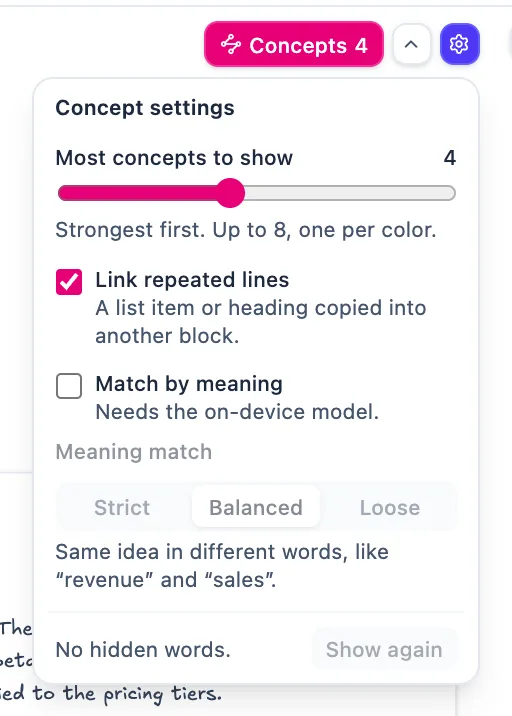
- Most concepts to show: 1 to 8, strongest first. Lower it on a busy canvas.
- Link repeated lines: turn this off to link on shared words only.
- Match by meaning: turn this off to skip the model even when it is downloaded. You can also download the model from here.
- Meaning match: Strict links only near-synonyms ("budget" and "spending"). Balanced, the default, links the same idea in different words ("revenue" and "sales"). Loose also links loosely related ideas ("plan" and "idea").
- Show again: restores every word you hid with ×.
What Concept Lines Don't Do
The limits, stated plainly:
- At most 8 concepts per canvas, one per color, or fewer if you set a lower number. Past eight, thin colored lines stop being easy to tell apart. If a canvas has more shared ideas than that, you see the strongest.
- One canvas at a time. Concept lines connect blocks on the canvas you have open. They do not link ideas across different notes. For connections between notes, use wiki links and the knowledge graph.
- Text blocks and sticky notes only. Drawings and images are not part of matching. Words in a block's title can link, but the line starts at the title instead of highlighting the word.
- Not on phones or narrow windows. The Concepts button is hidden when the app is narrower than 1,024 pixels, which covers phones, most tablets held upright, and narrow desktop windows.
- The fewest lines, not every line. A block links through at most two phrases per concept, and each concept joins its blocks with the fewest lines, nearest blocks first. Three blocks about pricing get two lines, not three.
- Overlap, not argument. A line says two blocks share a line, a word or a meaning, not whether they agree. That judgment is still yours.
Where It Earns Its Place
- A week of [meeting notes](/blog/productivity/how-to-take-better-meeting-notes) on one canvas. Repeated lines show which meeting each copied action item came from; shared words show which topics keep coming up.
- [Research synthesis](/blog/creative/canvas-ux-research-synthesis). Put interview snippets on sticky notes and see which themes recur across participants before you cluster by hand.
- Messy brainstorms. A constraint that keeps surfacing in different corners is usually worth its own block.
For the thinking method behind all of this, with concept lines as one tool among several, see How to Find Hidden Connections in Your Notes. For what else shipped the same week, and what we had to fix along the way, read the build log.
Frequently Asked Questions
Do concept lines send my notes to an AI service?
No. Repeated-line and shared-word matching is text comparison inside the app. The optional meaning model runs in your browser. The only network request is the one-time 23 MB model download from Hugging Face, and nothing about your notes or your concepts is uploaded.
Do I have to download the meaning model?
No. Concept lines match repeated lines and shared words without it. The model only adds matches between different words with the same meaning, such as "revenue" and "sales", and it is downloaded only when you click Download.
Do concept lines work offline and on encrypted notes?
Yes. Matching, including matching by meaning once the model is downloaded, runs on your device, so it works without a connection and on encrypted notes.
Are concept lines saved or shared with collaborators?
No. Lines and highlights are drawn on top of the canvas and are never saved, synced, exported or included in version history. Each device works them out for itself from the text on the canvas and its own settings.
Can I use concept lines on my phone or tablet?
Not on a phone. The Concepts button appears only when the app is at least 1,024 pixels wide, so it shows on desktop and laptop windows and on tablets wide enough to reach that, such as larger tablets held sideways.
Ready to try spatial notetaking?
OmniCanvas is a free infinite canvas app for notes, sketches, and ideas. Start locally with no account.
Try OmniCanvas FreeSign up only when you want sync — or explore the interactive demo first.
Keep reading
What Shipped: Concept Lines, One Toolbar, and Fewer Wasted Downloads
Concept lines, a single canvas toolbar that folds into More, checklists and wiki links in text blocks, and two fixes for downloads and reloads.
TutorialsSticky Notes on the Canvas: How to Combine Drawing and Structured Notes
OmniCanvas lets you place rich-text sticky notes directly on your drawing canvas. Learn how to use this feature for richer, more organized spatial notes.
TutorialsClient-Side Encryption in OmniCanvas: How to Keep Your Notes Truly Private
Per-note client-side encryption with AES-256-GCM. Notes are encrypted in your browser before they leave your device — not even we can read them.