What Shipped: Concept Lines, One Toolbar, and Fewer Wasted Downloads
Free, no account
Put this on an infinite canvas — open one free, right now.
Notes, sketches, and ideas anywhere on the canvas, in your browser. Sign up only when you want it synced.
Free forever · 30 days of Pro when you sign up
The Short Version
This week's release, dated September 18, 2026, has one new feature and a handful of fixes that each removed a small, repeated annoyance:
- Concept lines: a canvas toggle that shows which ideas run through more than one block
- One canvas toolbar instead of two, which folds into a More menu on narrow windows
- Checklists and wiki links that render properly in text blocks
- Downloaded models that survive updates, and reloads that no longer load twice
The full list is in the changelog.
Concept Lines
Turn on Concepts at the top right of a canvas and it highlights ideas shared by text blocks and sticky notes, then joins them with a curved line, one color per concept. It matches repeated lines and shared words straight away. After an optional 23 MB download it also matches by meaning ("revenue" and "sales") using a small model that runs in the browser, so your text doesn't leave the device. The feature walkthrough covers search, the hover card with Go to, pinning, hiding and settings.
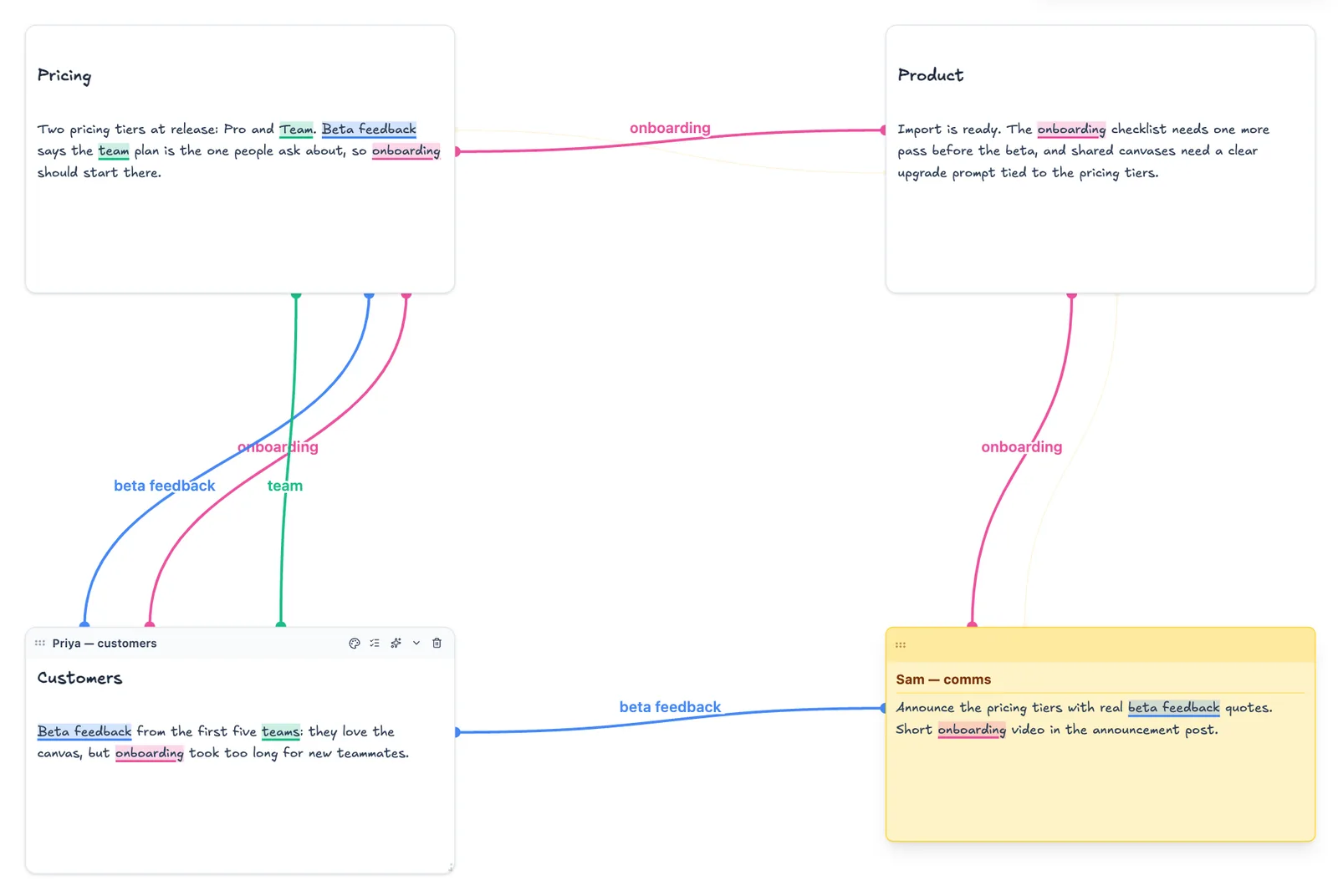
Three things we fixed on the way to this release:
Generic lines linked to the wrong block. A list item like "test thing 3" copied into another block was linked to whichever block happened to be nearest, because "thing" and numbers are filler and only "test" matched. Short lines that repeat word for word are now their own kind of concept, outrank the words inside them, and link to the exact line they repeat.
Too much at once. With several concepts on a canvas, every line competing for attention made the canvas hard to read. Lines are now thin and faint at rest and come forward only for the block you hover or edit. Labels on crossing lines used to stack on top of each other; each label now slides along its own line to a clear spot, or is left off.
Lines crossed text. A line running across a block made the text look struck through. Lines now go under blocks and meet each block on the side facing the other one.
Lines and highlights are drawn on top of the canvas and never written into your notes, so saving and sync are unaffected and nothing about concepts is stored or uploaded. The limits: one canvas at a time, at most eight concepts (one per color), and the button is hidden on windows narrower than 1,024 pixels, which includes phones.
Free, no account
Open a canvas in the browser — no account needed.
One Toolbar Instead of Two
The canvas used to have a viewport bar in the bottom-left corner and a tool dock in the centre. They are now one draggable bar, grouped left to right: history and zoom, drawing tools, style, insert and AI, view.
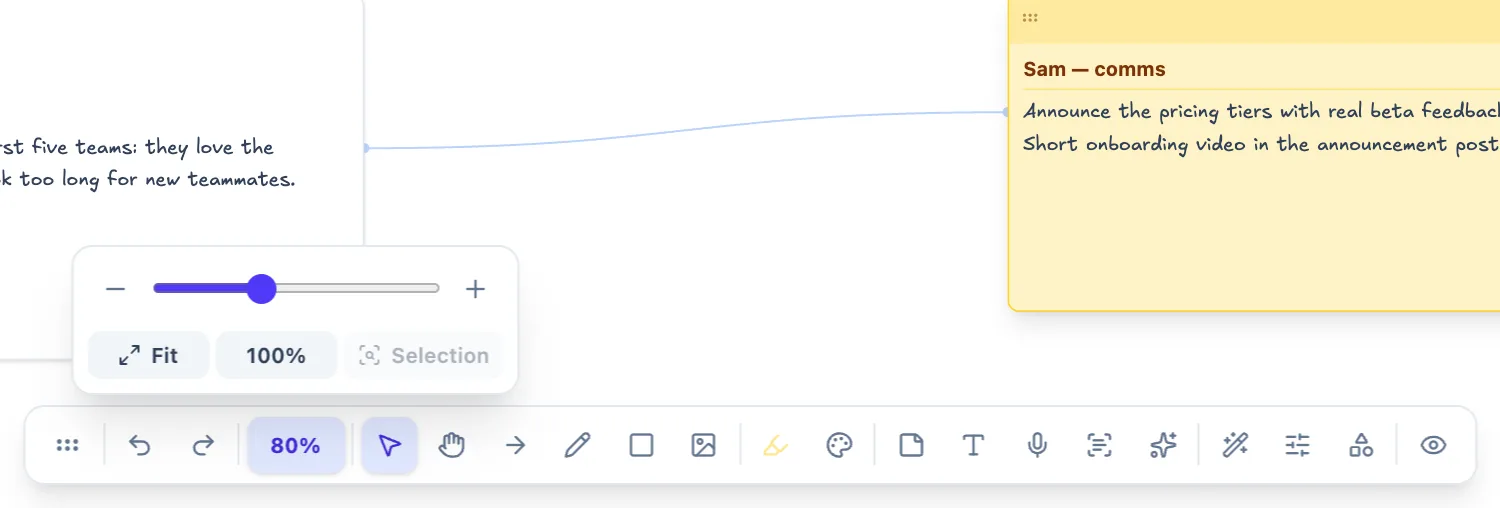
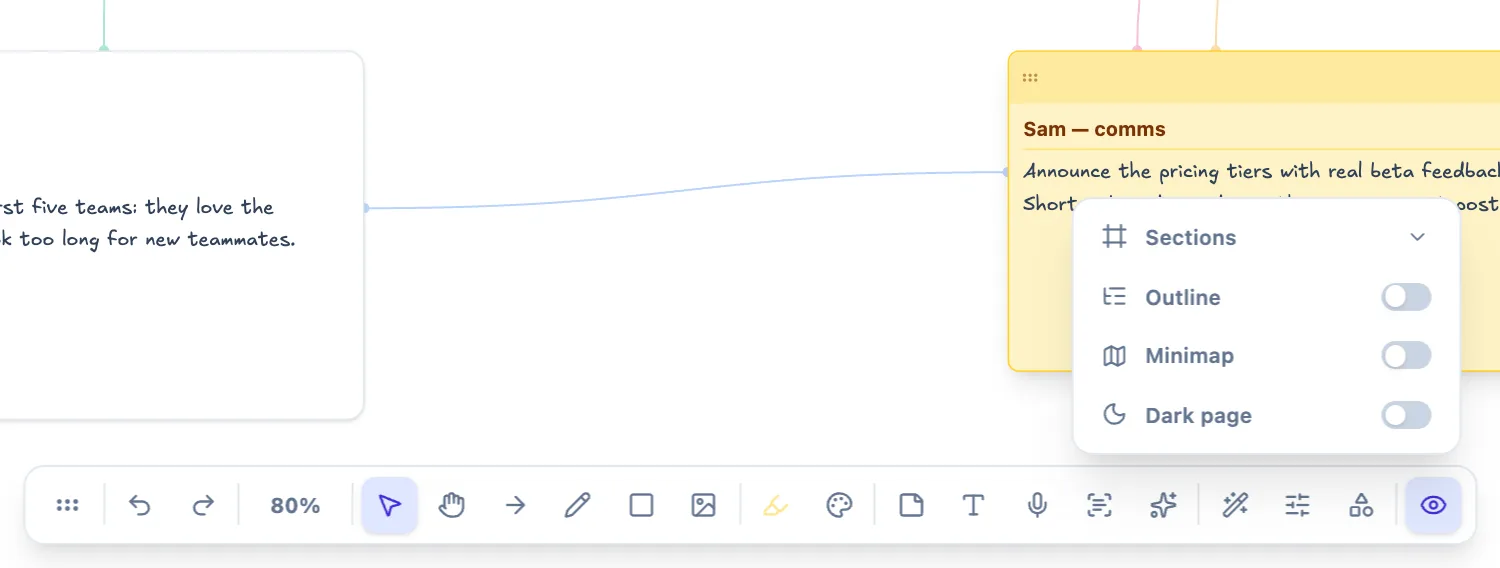
Zoom collapses to one percentage button with a slider, Fit, 100% and Zoom to selection. The view toggles (sections, outline, minimap, dark page) live in one View menu.
The part we're happiest with is narrow windows. Before, when the toolbar was wider than the canvas, the end of it scrolled out of sight behind a hidden scrollbar, so tools just seemed to be missing. Now whole groups fold into a More menu, view first, then insert and AI, then style. Nothing disappears; it moves one click away. On mobile, Draw is now directly in the toolbar, one tap away.
Checklists and Wiki Links in Text Blocks
AI meeting captures write action items as markdown checkboxes. The rich text blocks didn't understand that syntax, so each item showed up as a bullet with literal brackets in front of it. Checklists now render as real checkboxes.
Wiki links had the same problem: a saved link showed as raw bracket text in text blocks and sticky notes. Now it shows the note's title and opens the note when you click it. How links are saved is unchanged.
Also fixed: meeting-capture panels now sit directly under their text instead of at the bottom of the block, and the graph opens framed below its controls instead of with nodes hidden under the control bar.
Two Fixes That Stopped Wasting Your Time
Models downloaded again after every update. When the app updates, it clears its old cached files. The cleanup removed every cache with "omnicanvas" in its name, and that included the caches holding the on-device speech model and the new concept model. So every release quietly meant another download. Model caches are now kept; the rest of the old app files are still cleared. A related bug made a single failed model load (a busy tab, say) forget that the concept model was downloaded, and ask for the 23 MB again. Now it only asks if the files are actually gone; otherwise it offers Try again and reuses them.
Quick reloads loaded twice. Startup was only marked as finished by a five-second timer. Any reload within five seconds, including a manual refresh or the app's own update reload, looked like a startup that had crashed. The next load then ran crash recovery, cleared the offline cache and reloaded again, so you sat through "Opening your notes..." twice. Startup is now marked finished once your notes have loaded and the real interface is on screen. The timer stays as a fallback, and a startup that really does fail is still recovered.
Neither showed up as an error. Both just made the app feel slower than it is.
What's Next
If you use concept lines and something links that shouldn't (or doesn't that should), tell us. For how to use them as part of a broader habit, see How to Find Hidden Connections in Your Notes.
Ready to try spatial notetaking?
OmniCanvas is a free infinite canvas app for notes, sketches, and ideas. Start locally with no account.
Try OmniCanvas FreeSign up only when you want sync — or explore the interactive demo first.
Keep reading
Concept Lines: See How the Ideas on Your Canvas Connect
Concept lines highlight ideas shared by text blocks and sticky notes and join them with a colored line. How they work, the limits, and what stays private.
InsightsOne Canvas, Four Modes: How We Added Slides and Design Without Splitting the Product
Notes, Whiteboard, Slides and Design are four separate tools. We built them as four lenses over one canvas — the hard part was what switching must not do.
TechniquesHow to Create a Digital Vision Board on an Infinite Canvas
How to create a digital vision board combining images, text, goals and affirmations on a spatial canvas. More flexible than a physical board.