How to Pin Notes for Quick Access in OmniCanvas
Free, no account
Put this on an infinite canvas — open one free, right now.
Notes, sketches, and ideas anywhere on the canvas, in your browser. Sign up only when you want it synced.
Free forever · 30 days of Pro when you sign up
What Pinning Does in OmniCanvas
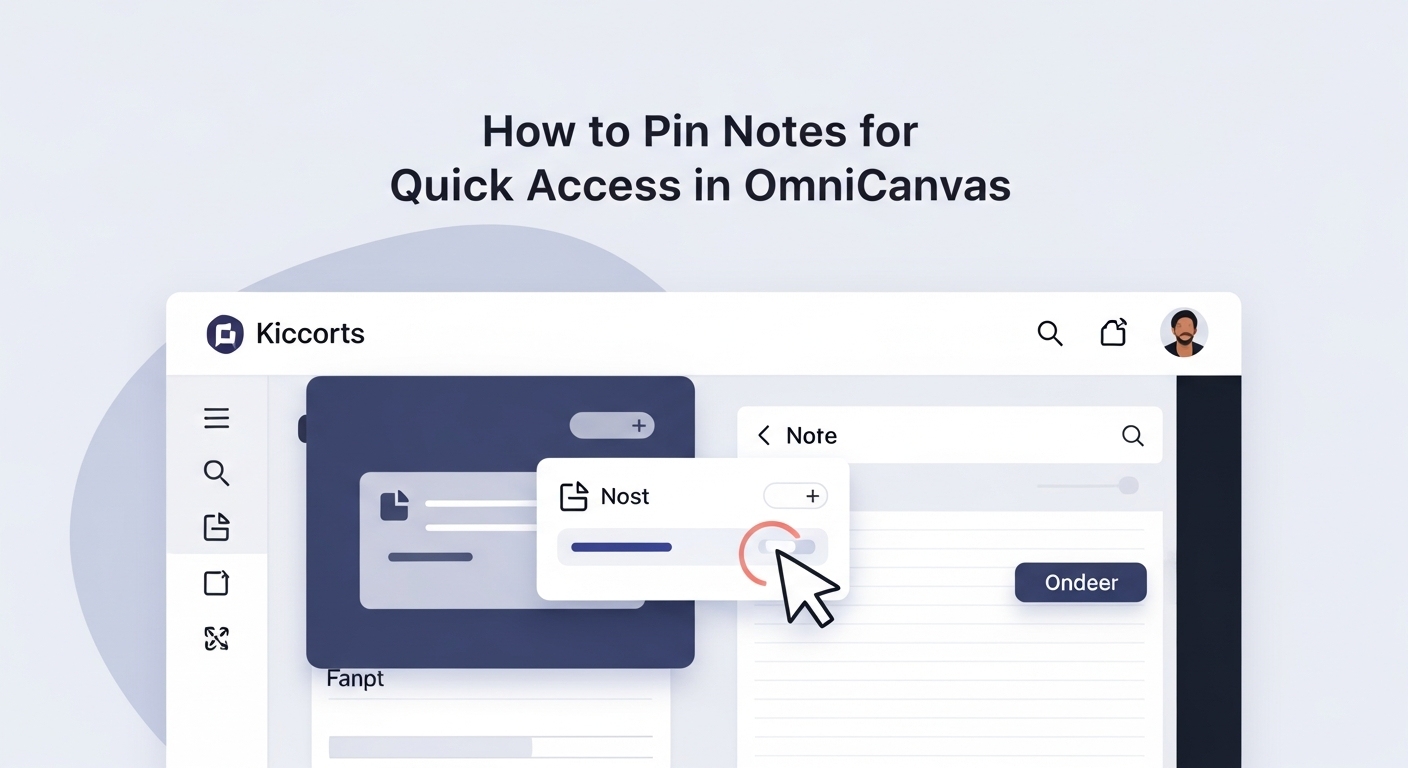
Pinning a note in OmniCanvas promotes it to the top of your notes list, regardless of which view you are using. Whether you are in grid view, list view, table view, or kanban view, pinned notes always appear first. This means your most important, most frequently accessed notes are always one glance away.
Think of pinning as a "favorites" system with a key advantage: pinned notes do not live in a separate section or folder. They stay exactly where they are in your folder and tag structure. They just float to the top of whatever view you are looking at. New to OmniCanvas? Start with the beginner's tutorial.
When to Pin a Note
Not every important note deserves a pin. If you pin too many notes, the feature loses its value because your pinned section becomes just as cluttered as the rest of your list. Here are the situations where pinning works best:
Active Project Hubs
If you have a note that serves as the central hub for a current project, pin it. This might be a canvas with your project roadmap, a note with key links and contacts, or a daily standup template. You will access this note multiple times per day, and pinning saves you from searching for it each time.
Frequently Referenced Information
Some notes contain information you look up repeatedly: a credentials reference sheet, a style guide, a process checklist, or a contact directory. Pin these so they are always at the top of your list.
Temporary Focus Items
Sometimes you need to keep a specific note front-of-mind for a few days. Maybe you are preparing for a presentation, working through a complex problem, or waiting for a response on something. Pin the note for the duration of that focus period, then unpin it when the moment passes.
What Not to Pin
Archival notes. Notes you want to keep but rarely access should not be pinned. They will clutter your pinned section and push your truly active notes further down.
Entire categories. If you find yourself wanting to pin every note in a folder, that is a sign you should be using folder navigation instead. Pinning is for individual standout notes, not bulk categorization.
Completed items. Once a project wraps up or a reference note becomes outdated, unpin it immediately. Stale pins are worse than no pins because they train your eyes to ignore the pinned section entirely.
Free, no account
Open a canvas in the browser — no account needed.
A Pinning Strategy That Scales
Here is a simple rule of thumb: keep your pinned notes between three and seven items. This range is small enough that you can scan the full list instantly, but large enough to cover your key daily needs.
The Three-Pin Minimum
At minimum, consider pinning:
- Your [daily dashboard](/blog/tutorials/build-daily-dashboard-canvas) or inbox canvas. The note you open first every morning.
- Your most active project. The note you are spending the most time on this week.
- Your quick-reference note. The note with information you look up multiple times per day.
Expanding to Five or Seven Pins
If three is not enough, add pins for:
- A secondary active project.
- A meeting notes template or running meeting log.
- A personal goals or habit tracking note.
- A temporary focus item that needs attention this week.
The Weekly Unpin Review
Every Friday (or whatever day ends your work week), review your pinned notes. Ask two questions about each one:
- Did I access this note multiple times this week?
- Will I need quick access to it next week?
If the answer to both questions is no, unpin it. This five-minute review keeps your pinned section fresh and relevant.
Combining Pins with Other Organization Features
Pinning works best as part of a broader organization system, not as a replacement for one.
Pins Plus Folders
Use folders to organize notes by project or topic. Use pins to surface the one or two notes from each area that need daily attention. When you navigate into a specific folder, you see everything in that area. When you look at your full notes list, pinned items tell you where to focus.
Pins Plus Tags
Tag your pinned notes with a tag like "active" or "current-focus." This way, even if you accidentally unpin something, you can quickly find it again by searching for the tag. It also gives you a way to review all currently active items in one search.
Pins Plus Search
The Cmd+K search in OmniCanvas searches across all notes, including pinned ones. If your pinned list grows beyond seven items and you cannot decide what to unpin, use search as your overflow mechanism. Pin only the top items and rely on search for everything else.
Pinning in Different Views
Pinned notes behave consistently across all OmniCanvas views:
- Grid view: Pinned notes appear as the first cards in the grid.
- List view: Pinned notes sit at the top of the list.
- Table view: Pinned notes occupy the first rows, and you can still sort and filter the remaining notes below them.
- Kanban view: Pinned notes are highlighted within their respective columns.
This consistency means you can switch views freely without losing track of your pinned items. The notes you care about most are always where you expect them to be.
Ready to try spatial notetaking?
OmniCanvas is a free infinite canvas app for notes, sketches, and ideas. Start locally with no account.
Try OmniCanvas FreeSign up only when you want sync — or explore the interactive demo first.
Keep reading
Setting Up Cloud Sync in OmniCanvas: Access Your Notes Everywhere
OmniCanvas cloud sync keeps your notes in sync across the desktop app and web. Learn how to set it up and get the most out of cross-device access.
TutorialsDark Mode in OmniCanvas: Setup, Benefits, and Best Practices
How to enable and get the most out of dark mode, including benefits for eye strain, night work, and focus.
TutorialsBuilding a Daily Dashboard Canvas in OmniCanvas
Create a reusable daily dashboard canvas with zones for today's priorities, ongoing projects, quick capture and reference info. Includes layouts.