Dark Mode in OmniCanvas: Setup, Benefits, and Best Practices
Free, no account
Put this on an infinite canvas — open one free, right now.
Notes, sketches, and ideas anywhere on the canvas, in your browser. Sign up only when you want it synced.
Free forever · 30 days of Pro when you sign up
Why Dark Mode Matters for Notetaking
Dark mode is not just an aesthetic preference. For people who spend hours working with notes, canvases, and diagrams, it is a functional choice that affects comfort, focus, and even creativity. OmniCanvas includes a built-in dark mode toggle that transforms the entire interface, and understanding how to use it well can meaningfully improve your experience. New to OmniCanvas? Start with the beginner's tutorial.
How to Enable Dark Mode
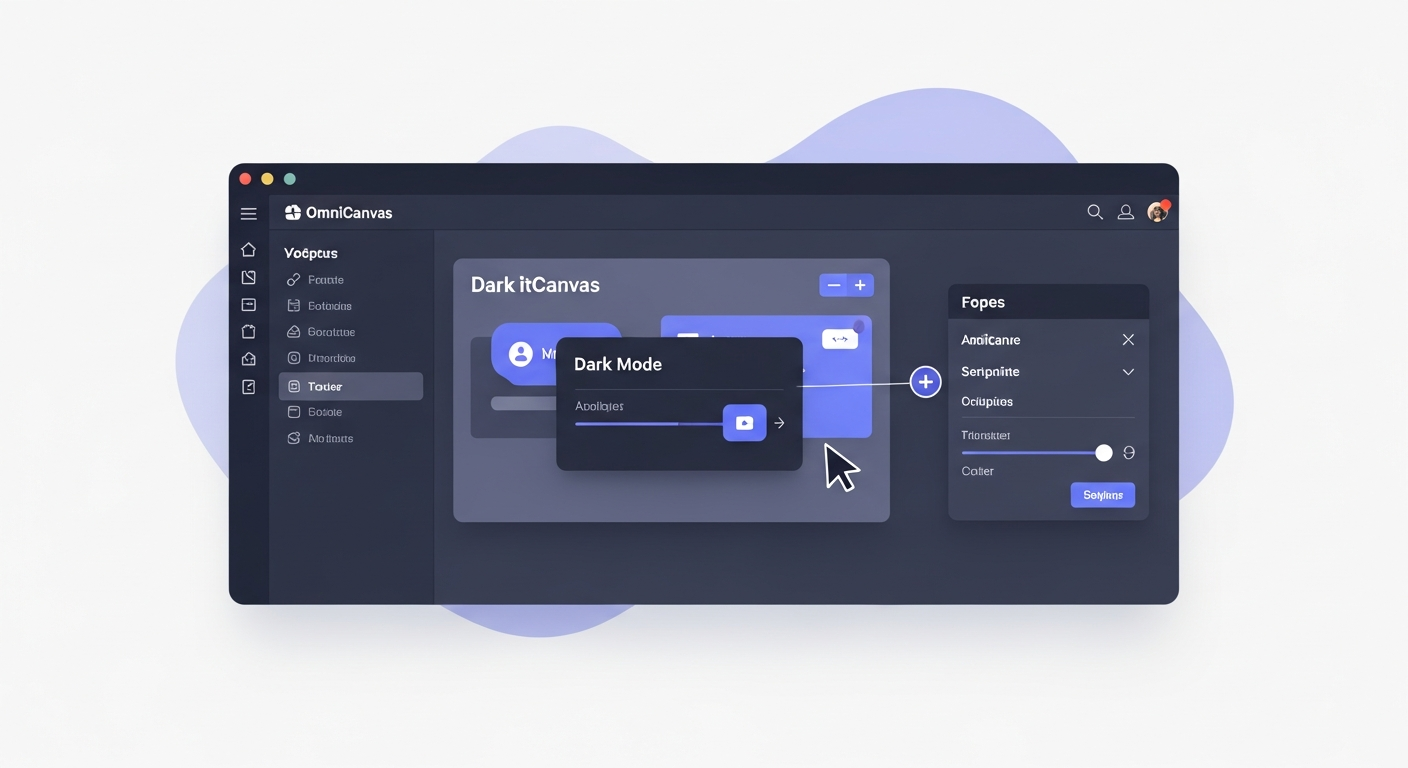
Turning on dark mode in OmniCanvas takes one click. Look for the dark mode toggle in the app settings. Click it and the entire interface switches from a light background to a dark one. Click again to switch back. Your preference is saved automatically and persists across sessions.
The toggle affects everything: the sidebar, note list, canvas background, sticky notes, toolbar, and all interface elements. The transition is instant with no need to reload or restart.
Benefits of Working in Dark Mode
Reduced Eye Strain During Long Sessions
When you are building complex canvases, organizing dozens of notes, or working through a detailed knowledge graph, you might spend hours looking at the screen. A bright white background in a dim room forces your pupils to contract, which leads to fatigue over time. Dark mode reduces the overall brightness of the interface, easing the strain on your eyes.
This is especially noticeable during evening and nighttime work sessions. If you tend to do your best thinking after dinner, dark mode makes those sessions significantly more comfortable.
Better Focus on Content
A dark background naturally draws your attention to the content that is displayed on it. Sticky notes, drawn shapes, and text all pop against a dark canvas. This figure-ground contrast helps you focus on what matters: your ideas, not the interface surrounding them.
Many users report that they find it easier to enter a flow state in dark mode because the interface recedes and the content comes forward.
Reduced Blue Light Exposure
While dark mode is not a complete blue light filter, it does reduce the total amount of light your screen emits. For people who are sensitive to blue light or who want to minimize screen brightness before bed, dark mode is a meaningful step in the right direction.
Free, no account
Open a canvas in the browser — no account needed.
Best Practices for Dark Mode
Choose Sticky Note Colors Deliberately
OmniCanvas offers six sticky note colors. In light mode, all six are easy to distinguish. In dark mode, some colors look different than you might expect. Spend a few minutes creating test sticky notes in each color to see how they look against the dark canvas.
Bright colors like yellow and orange tend to stand out dramatically in dark mode, making them ideal for high-priority items. Cooler colors like blue and green blend more subtly into the dark background, which makes them good for reference notes or lower-priority items.
Adjust Your Drawing Style
When drawing on a dark canvas, light-colored strokes are more visible than dark ones. If you have been using black or dark gray as your default drawing color, switch to white or a light gray in dark mode. For more on getting clean results, see advanced canvas drawing techniques. This ensures your diagrams and annotations remain clearly visible.
Bold, thick strokes also work better on dark backgrounds than thin, delicate ones. If you use fine lines for detailed diagrams, consider increasing the stroke width slightly when working in dark mode.
Consider Your Export Needs
When you export a canvas to PDF, OmniCanvas gives you the option to choose between a white background and a transparent background. If you have been working in dark mode and your canvas looks great with dark surroundings, be aware that exporting with a white background will change how the canvas looks. Elements that were bright and vivid against a dark background may look washed out on white.
If your exported PDFs are for your own reference, transparent backgrounds preserve the look you intended. If the PDFs are for sharing with others who will print them, a white background with appropriately colored elements works better.
Use Dark Mode for Different Work Phases
Some users find it helpful to associate dark mode with specific types of work. For example:
- Dark mode for creative work. Brainstorming, mind mapping, and freeform canvas exploration feel more immersive in dark mode.
- Light mode for review and editing. When you are polishing notes, checking details, or preparing content for sharing, light mode can feel more precise and businesslike.
- Dark mode for evening, light mode for daytime. Match your interface to the ambient lighting in your workspace.
There is no right answer here. The point is that having the toggle available lets you adapt your environment to your current task and energy level.
Dark Mode and the Knowledge Graph
The knowledge graph view is particularly striking in dark mode. Nodes and connection lines appear as bright elements against a dark background, which makes the structure of your knowledge network visually dramatic and easy to read. If you have not explored the knowledge graph yet, try it in dark mode first. The visual clarity may surprise you.
Making the Switch
If you have been using light mode exclusively, try committing to dark mode for one full week. It takes a day or two for your eyes and brain to adjust to the new color scheme. After that adjustment period, most users find that they strongly prefer one mode over the other. And since switching is instant, you can always go back.
The most important thing is that your notetaking environment works for you. Dark mode is a tool for comfort and focus. Use it when it helps, and do not feel obligated to use it when it does not.
Ready to try spatial notetaking?
OmniCanvas is a free infinite canvas app for notes, sketches, and ideas. Start locally with no account.
Try OmniCanvas FreeSign up only when you want sync — or explore the interactive demo first.
Keep reading
The Connection Between Notetaking and Deep Work
How good notetaking practices support Cal Newport's deep work philosophy, including focus rituals, shutdown routines, and knowledge capture.
TutorialsConcept Lines: See How the Ideas on Your Canvas Connect
Concept lines highlight ideas shared by text blocks and sticky notes and join them with a colored line. How they work, the limits, and what stays private.
TutorialsHow to Pin Notes for Quick Access in OmniCanvas
Use pinning to keep your most important notes at the top of every view. What to pin, when to unpin, and how pins combine with other organization.