Cross-Referencing Notes with Multiple Folders in OmniCanvas
Free, no account
Put this on an infinite canvas — open one free, right now.
Notes, sketches, and ideas anywhere on the canvas, in your browser. Sign up only when you want it synced.
Free forever · 30 days of Pro when you sign up
The Problem with Single-Folder Systems
In most notetaking apps, each note lives in exactly one folder. This forces you to make an impossible choice. Does your meeting notes document about the Q3 marketing budget belong in the "Meetings" folder or the "Marketing" folder or the "Budgets" folder? You pick one location, and then you cannot find the note when you are thinking about it from a different angle.
Some people solve this by duplicating notes across folders. But duplicates create a nightmare: you update one copy and forget the other, leading to conflicting information scattered across your system.
OmniCanvas solves this with multi-folder notes. A single note can belong to multiple folders simultaneously. No duplication, no conflicts, no impossible choices. If you are just getting started, the beginner's tutorial covers the basics of notes and folders.
How Multi-Folder Notes Work in OmniCanvas
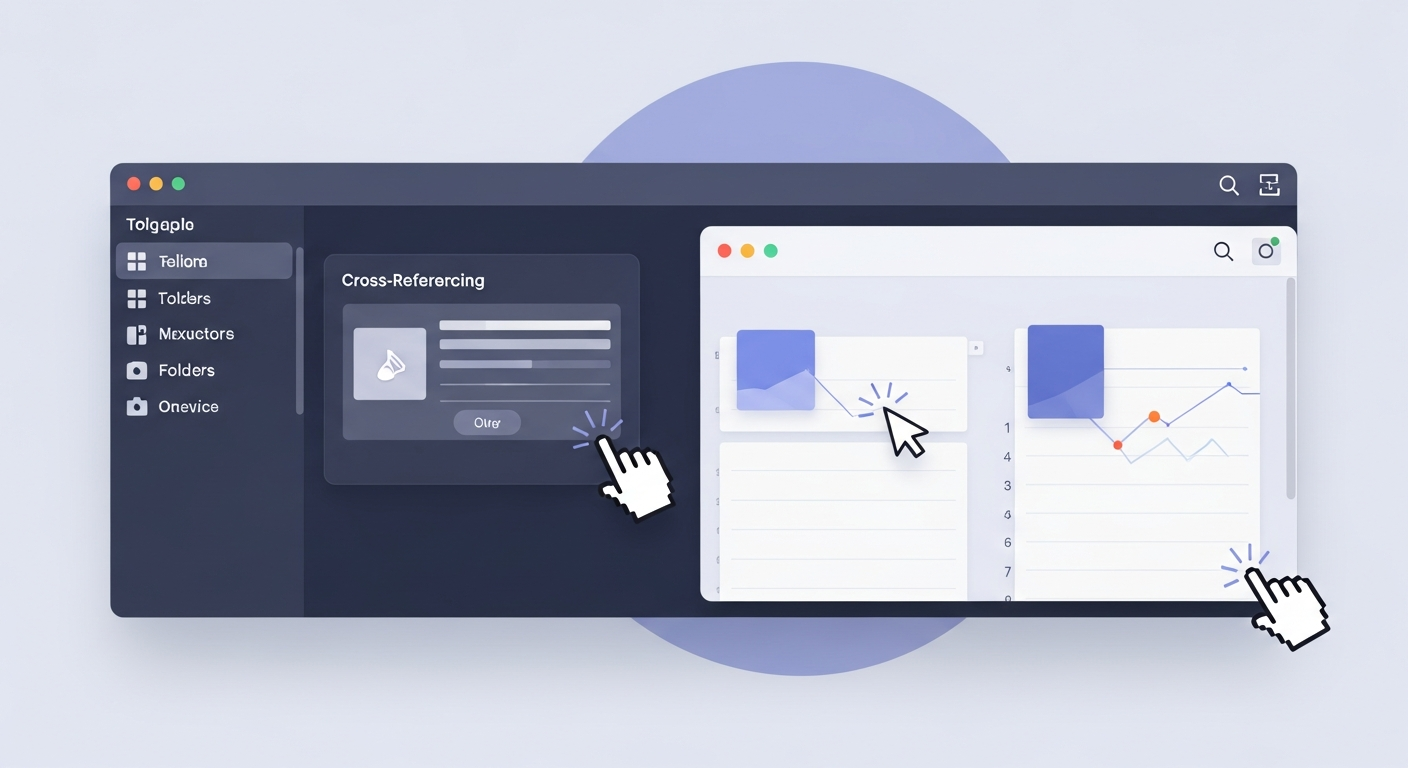
When you create or edit a note in OmniCanvas, you can assign it to as many folders as you want. The note itself is stored once. Each folder simply holds a reference to it. When you update the note, the changes appear everywhere it is filed.
This means you can browse your "Meetings" folder and see the Q3 marketing budget note right there. Then switch to "Marketing" and see the same note. Open it from either location and you are editing the same document.
Setting Up a Cross-Referenced Folder Structure
To get the most out of multi-folder notes, you need a folder structure designed for cross-referencing. Here is a structure that works well:
By Area of Responsibility
Create top-level folders for each area of your life or work:
- Work
- Personal
- Health
- Finance
- Learning
By Project
Create folders for active projects, nested under their area:
- Work / Website Redesign
- Work / Q3 Campaign
- Personal / Home Renovation
By Type
Create folders for note types that cross all areas:
- Meeting Notes
- Reference
- Ideas
- Templates
Free, no account
Open a canvas in the browser — no account needed.
The Cross-Referencing Magic
Now, when you take notes during a meeting about the website redesign, file that note in both "Meeting Notes" and "Work / Website Redesign." When you capture an idea for the Q3 campaign while reading an article, file it in both "Ideas" and "Work / Q3 Campaign."
Every note appears in every relevant context. You never have to remember which folder you chose.
Practical Cross-Referencing Strategies
Strategy 1: The Project-Plus-Type Method
Every note gets filed in at least two folders: one project folder and one type folder. A brainstorming session for the website redesign goes in "Work / Website Redesign" and "Ideas." A budget spreadsheet goes in "Work / Q3 Campaign" and "Reference."
This means you can browse by project when you are working on something specific, or browse by type when you want to see all your meeting notes or all your reference materials.
Strategy 2: The Stakeholder Method
If you work with multiple teams or clients, create folders for each stakeholder. Then file notes in both the project folder and the stakeholder folder. When a client asks what you have been working on for them, open their folder and every relevant note is there.
Strategy 3: The Timeline Method
Create folders for time periods: "2027 Q1," "2027 Q2," and so on. File every note in both its topic folder and the relevant time-period folder. This gives you a chronological view alongside your topical view.
Combining Multi-Folder Notes with Tags
Multi-folder filing handles broad categorization. Tags handle fine-grained attributes (our folders and tags guide covers both in depth). Use them together for a powerful system:
- Folders for where a note belongs (project, area, type).
- Tags for what a note is about (status, priority, topic keywords).
For example, a note filed in "Work / Website Redesign" and "Meeting Notes" might also have tags like "design," "stakeholder-feedback," and "action-items." You can then use OmniCanvas search with Cmd+K to find all notes tagged "action-items" across every project.
Discovering Connections with the Knowledge Graph
OmniCanvas has a knowledge graph view that visualizes connections between your notes based on folder membership, shared tags, and content similarity. When you file notes in multiple folders, the knowledge graph becomes dramatically more useful.
Notes that share multiple folders show up as strongly connected in the graph. This makes it easy to spot clusters of related information and discover connections you might not have noticed otherwise. Adjust the similarity threshold to control how aggressively the graph links notes by content, and watch unexpected relationships emerge.
Avoiding Common Mistakes
Do not create too many folders. Multi-folder notes reduce the need for deeply nested folder hierarchies. If you find yourself creating a folder that will only hold two or three notes, consider using tags instead.
Be consistent with your filing rules. Decide on a system (like the project-plus-type method) and stick with it. Inconsistent filing undermines the whole approach.
Review your folder structure quarterly. Archive folders for completed projects. Merge folders that overlap too much. A clean folder structure makes multi-folder filing effortless.
Use search as a safety net. Even with great organization, sometimes you will forget where you filed something. The Cmd+K search in OmniCanvas searches across titles, content, tags, and folders, so you can always find what you need regardless of how it is organized.
Ready to try spatial notetaking?
OmniCanvas is a free infinite canvas app for notes, sketches, and ideas. Start locally with no account.
Try OmniCanvas FreeSign up only when you want sync — or explore the interactive demo first.
Keep reading
Bulk Actions: How to Manage Dozens of Notes in Seconds
Use multi-select and bulk actions to move, delete or reorganize many notes at once. Workflows for spring cleaning, archiving and folder reorganization.
TutorialsSetting Up Cloud Sync in OmniCanvas: Access Your Notes Everywhere
OmniCanvas cloud sync keeps your notes in sync across the desktop app and web. Learn how to set it up and get the most out of cross-device access.
TutorialsSearch Like a Pro: Finding Anything in OmniCanvas Instantly
OmniCanvas search goes beyond titles — it searches your canvas content, sticky notes, tags, and folders. Learn how to find any note in seconds.